Editing a Field Value
Allows to update just one specific cell (e.g., price of a single product) within a table of product data.Changing the data in a specific field (like price, stock, SKU, etc.) for a product directly within a spreadsheet-style table, without using filters or bulk actions.
Last updated 7 months ago
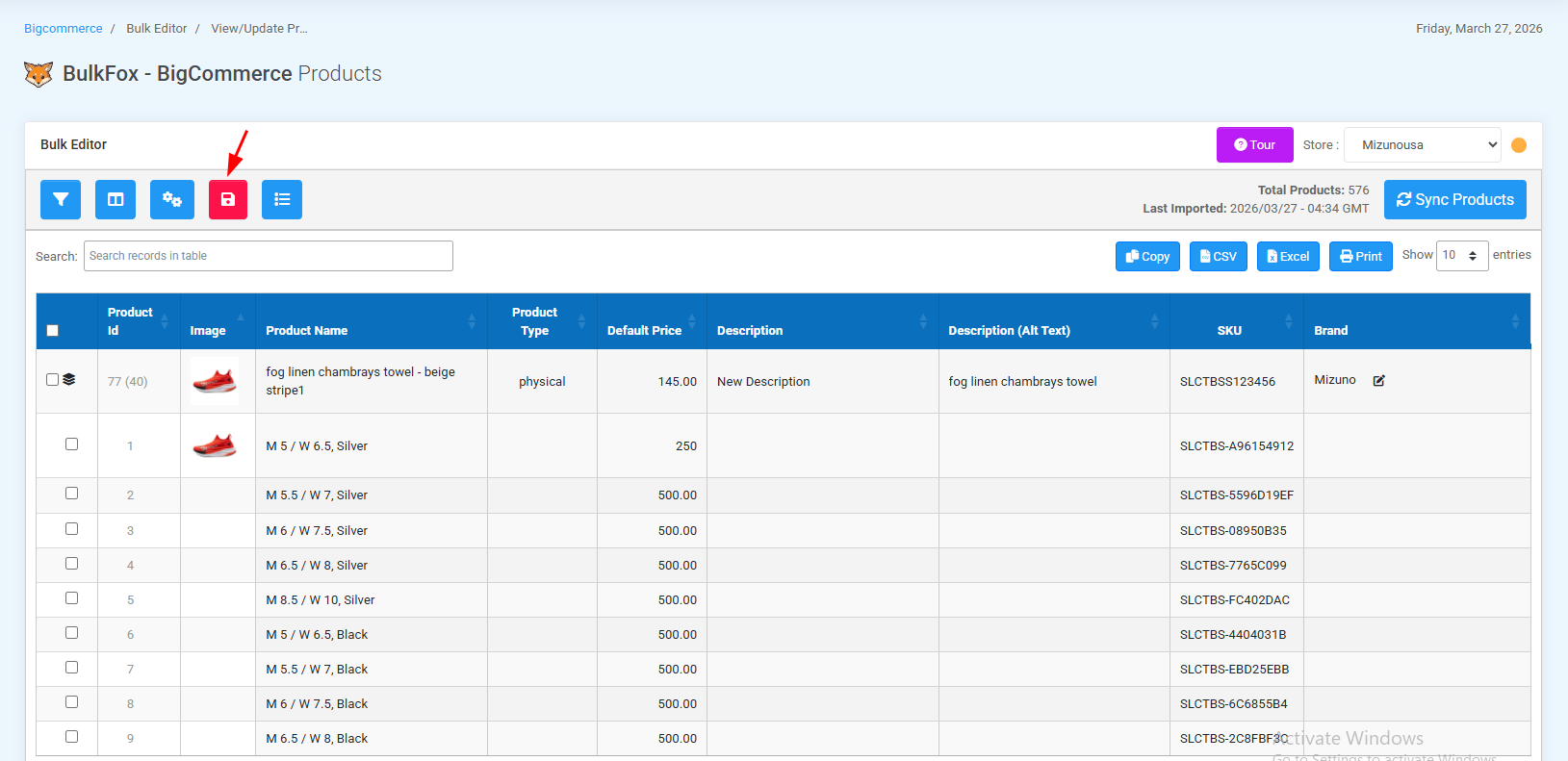
Steps to Edit a Single Value
Step1 : Go to the Bulk Editor page.
Step2 : Find the Product you wish to Edit.
Step3 : Click directly on the Field you want to modify.
Step4 : Enter the New Value.(For Example, change price from 20 to 25).
Step5 : Click the “Save” button”.The new value will be reflected in the table immediately after saving.
Note: If any changes are made to fields in the products table, the 'Save' button will turn red to notify that there is unsaved data in the table."
Steps To Copy Value to Multiple Products.

Step1 : Open the Bulk Editor Interface
Step2 : Load Prodcuts - Use filter to select the products you want to edit.
Step3 : Select the column you wish to copy the value to (e.g., "Price", "SKU", "Custom Field")
Step4 : Enter the desired value in the first row (or any one row).
Step5 : Hover over the corner of the cell (you’ll see a small square).
Step6 : Click and drag downward to auto-fill the same value to multiple cells.
Step7 : Click Save Button to apply the updates .
Was this helpful?
Still need help? Share an idea