Installation and Authentication
Last updated About 1 year ago
Installation Steps
Step 1 – Log in to BigCommerce
Visit the official BigCommerce login page: Log in to BigCommerce
Enter your email address, and password.
Once logged in, you will be redirected to your BigCommerce control panel.
Step 2 – Access the App Marketplace
In the BigCommerce dashboard, navigate to Apps → Marketplace.
Search for Bulk Fox Plugin in the marketplace search bar.
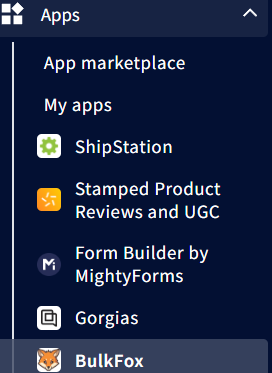
Step 3 – Install the Bulk Fox Plugin
Click on the BulkFox Plugin listing.
Select Get This App.
Confirm the permissions requested by the plugin.
Click Install.
Authenticating Plugin with BigCommerce
Upon launching the BulkFox plugin, you will be prompted to sign up or log in.
If you are a new user:
Enter your email and password to create an account.
Verify your email if required.
If you are a returning user, log your credentials.
The plugin will request permissions to access your BigCommerce store data. Click Authorize to proceed.
PrerequisitesBefore installing, ensure the following:
You have an active BigCommerce store.
You have Store Owner or Administrator permissions.
You know your BigCommerce login credentials.
Was this helpful?
Still need help? Share an idea